
Thank you for using INS LifeGuardian® for your Phone.
What you need
To set up and use a Galaxy Watch, you need the following:
- Your new Samsung Galaxy Watch 8
- Phone with Android 11 or later
- You will need to ensure the following Apps are installed:
- Galaxy Wearable
- Samsung Health
- Health Connect
Before you begin
- Ensure your phone is updated to the latest version of Android. To do this:
- Go to the Settings app on your Phone
- Tap System
- Tap Software Update.
- Make sure that your Phone has Bluetooth turned on, and it’s connected to a Wi-Fi or cellular network: To check this:
- Swipe down from the top-right corner of the Phone screen
- Ensure that Bluetooth
 and Wi-Fi
  (or Cellular
  ) are highlighted.
Install INS LifeGuardian® on your Phone
If you have not already installed INS LifeGuardian® on your Phone, scan the QR Code to open the App in the Play Store.
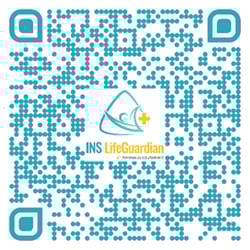
Alternatively search for INS LifeGuardian® in the Play Store and open the corresponding app.
Once INS LifeGuardian® has been installed, open the App and follow the below steps:
- Follow the On-Screen prompts as it walks you through information about INS LifeGuardian® and how it works, and then click Login or Register.
- Enter your mobile number.
- Click Verify.
- Enter the 6 Digit Code that was sent to your mobile number.
- This will log you into your pre-created account. if one exists, or create one if you're new.
- If there are multiple people on the same file, e.g. Husband and Wife, it will ask you to select which person is logging in. Ensure the correct person is selected.
Install Samsung Health on your Phone
If you do not already have Samsung Health installed on your Phone, scan the QR Code below to locate the App in the Play Store and install it.

Alternatively search for Samsung Health in the Play Store and open the corresponding app.
Follow the On-Screen prompts to finish setup of Samsung Health.
NOTE: You will be required to log into or create a Samsung Account to use Samsung Health.
Install Health Connect on your Phone
If you do not already have Health Connect installed on your Phone, scan the QR Code to locate the App in the Play Store and install it.

Alternatively search for Health Connect in the Play Store and open the corresponding app.
Follow the Onscreen prompts to complete setup for Health Connect.
Install Galaxy Wearable on your Phone
If you do not already have Galaxy Wearable installed on your Phone, scan the QR Code to locate the App in the Play Store and install it.

Alternatively search for Galaxy Wearable in the Play Store and open the corresponding app.
Follow the below steps to pair the Galaxy Watch to your phone.
Turn on and pair your Galaxy Watch
- Put your Galaxy Watch on your wrist.
- To turn on your Galaxy Watch, press and hold the side button until you see the Samsung logo. NOTE: If your Galaxy Watch doesn’t turn on, you might need to charge the battery.
- Open Galaxy Wearable on your Phone and tap Start.
- Select the Watch, Samsung Galaxy Watch8 and then follow the on-screen prompts to complete the setup process.
Activate cellular service
You can activate cellular service during setup. If you don’t wish to, you can activate it later in the Galaxy Wearable app on your Phone.
INS LifeGuard strongly recommends using this if you can, as it allows your Galaxy Watch to work away from your Phone without relying on it for connectivity, which allows you to get help on your wrist, even if you left your phone at home.
Note: Cellular service is currently only available with Telstra, Optus or Vodafone.
Setting up INS LifeGuardian®
After successfully logging into INS LifeGuardian® you will be greeted with a Popup about your Subscription.
- If INS LifeGuardian® is being funded on your behalf, you can click the X in the top corner of the window to go to the home screen.
- If you are paying for INS LifeGuardian® out of pocket, you can Subscribe here to get access to a month free trial, which you can cancel at any time, to test all the features.
Once this has been done, you will be on the Home Screen and will have a list of tasks to complete for setup. These are things such as Permissions that are required to be granted to allow INS LifeGuardian® to always function correctly, especially during an Emergency.
Connecting Health Connect and Samsung Health
Once you have setup both Health Connect and Samsung Health, you will need to allow the connection between the two apps to allow for the data to flow through to INS LifeGuardian®.
- Open the Samsung Health app.
- Tap "My Page," then the "More" button in the top-right corner.
- Tap the “Settings” button.
- Scroll down and tap Health Connect - this will open the Health Connect app.
- Select app permissions and find Samsung Health.
- Within the Samsung Health permissions page, allow it to write all.
Setting up Health Permissions
Click on the Health Tab along the bottom of the screen. If this is the first time you have opened this tab, it will ask you to connect Health Connect with INS LifeGuardian® and grant permissions. Click Ok.
You will be asked to grant the permissions of the different Health Data that INS LifeGuardian® can read and write from Health Connect. Click Allow All and then Click the back arrow in the top left of the screen.
This will give INS LifeGuardian® the ability to read all your health data and the Nurses will be able to start monitoring you.
Setting up INS LifeGuardian® on Galaxy Watch
Once INS LifeGuardian® has been downloaded and installed on both the Galaxy Watch and your Phone, open INS LifeGuardian® on both devices, so they are both active and open. This will allow them to sync together and ensure that you are able to push Help on your Watch if needed. It will also allow you to grant any additional permissions.
Tutorials
You can view some Tutorials on common features by:
- Click on Settings in the bottom right of the screen
- Click on Tutorials
- Select the Tutorial you wish to view. This will show a brief video of the steps that will loop for you, as well as step by step instructions
If you need further assistance, please call 1800 636 226.